What makes a game feel alive isn’t just pretty graphics or interesting characters, it’s the moment when objects start behaving like they do in the real world. When you drop a ball and it bounces with just the right amount of energy, when boxes tumble realistically off a shelf, when a car’s suspension responds to bumps in the road, that’s when static 3D art transforms into something interactive and engaging.
Unity‘s physics system is the magical bridge between lifeless 3D models and dynamic, reactive experiences. It’s what makes objects fall when you let go of them, bounce when they hit the ground, and push other objects out of the way. Without physics, your beautiful 3D world would be like a museum exhibit, pretty to look at, but nothing ever moves or responds to your actions.
This is the fifth article in our Unity Basics series for beginners. We’ve explored Unity’s interface, learned about GameObjects and Components, and discovered how materials and lighting bring visual life to our scenes. Now we’re adding the final piece of the puzzle, realistic movement and interaction through Unity’s physics simulation.
The Real World vs. The Digital World
In the real world, physics just happens. Drop your coffee mug, and gravity pulls it down until it hits the table (hopefully not shattering). Push a book, and friction determines how far it slides. Bounce a basketball, and the rubber material’s elasticity sends it back up with diminished energy.
In the digital world, none of this happens automatically. A 3D cube has no concept of weight, gravity, or collision, it’s just a collection of vertices and triangles floating in mathematical space. Unity’s physics system changes that by constantly running calculations that simulate real-world behavior, making digital objects act like they have mass, respond to forces, and interact with each other believably.
The Three Pillars of Unity Physics
Unity’s physics system rests on three fundamental concepts that work together to create realistic movement and interaction:
1. Rigidbodies: Giving Objects Weight and Momentum
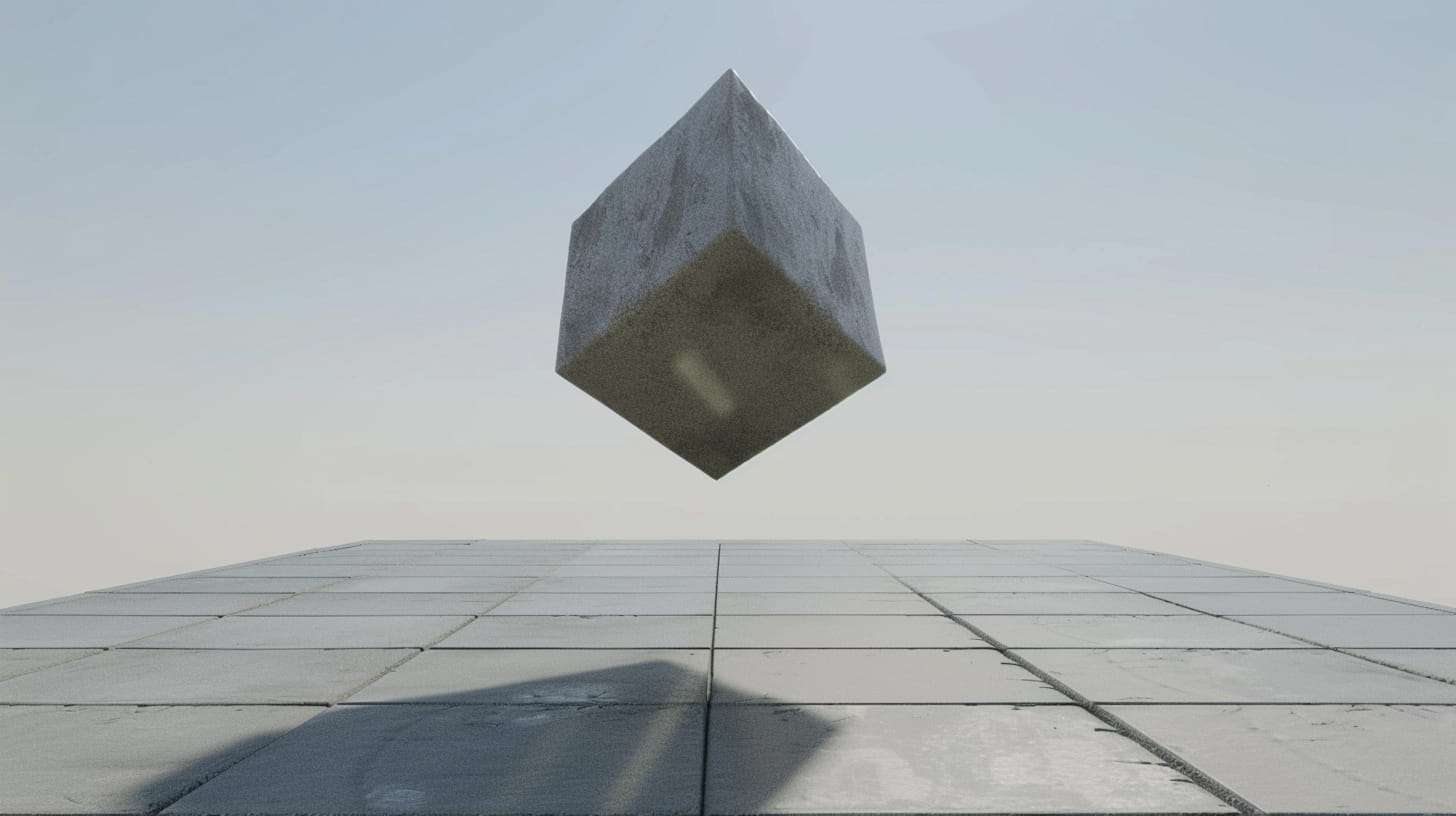
A Rigidbody Component is what transforms a static 3D model into a physics object. Think of it as giving your GameObject a physical presence in the world: mass, weight, and the ability to be affected by forces like gravity, wind, or explosions.
What Rigidbodies provide:
- Mass: How heavy the object is (affects how it responds to forces)
- Gravity: Whether the object falls down or floats in space
- Drag: Air resistance that gradually slows moving objects
- Angular Drag: Rotational resistance that stops spinning objects
- Constraints: Lock movement or rotation along specific axes
Real-world analogy: A Rigidbody is like the difference between a cardboard movie prop and a real object. The prop looks right but has no weight or substance. The real object has mass, responds to gravity, and interacts physically with the world around it.
2. Colliders: Defining Physical Boundaries
While Rigidbodies give objects physical properties, Colliders define their physical shape and boundaries. A Collider is an invisible shell around your 3D model that tells Unity’s physics engine exactly where the object starts and ends.
Common Collider types:
- Box Collider: Perfect for rectangular objects like crates, buildings, or books
- Sphere Collider: Ideal for balls, bubbles, or roughly spherical objects
- Capsule Collider: Great for characters or pill-shaped objects
- Mesh Collider: Uses the exact shape of your 3D model (more expensive computationally)
Why separate visual and physical shapes? Often, the visible 3D model and the physics boundaries don’t need to be identical. A detailed tree model with thousands of individual leaves might use a simple cylindrical Collider for performance, players won’t notice the difference, but your game will run much smoother.
3. Physics Materials: Surface Properties
Just like visual materials control how objects look, Physics Materials control how they behave during collisions. They define properties like bounciness, friction, and stickiness.
Key Physics Material properties:
- Bounciness (Restitution): How much energy is retained after collision (0 = no bounce, 1 = perfect bounce)
- Dynamic Friction: Resistance when objects slide against each other
- Static Friction: Force needed to start moving a stationary object
- Friction Combine: How friction values mix when different materials interact
A Complete Example: The Bouncing Ball
Let’s walk through creating a classic physics demonstration, a bouncing ball on a table, to see how these three pillars work together:
Step 1: Creating the Ball
- Add a Sphere to your scene (GameObject → 3D Object → Sphere)
- Add a Rigidbody Component to make it affected by gravity
- The Sphere already has a Sphere Collider (Unity adds it automatically)
- Position the ball several units above your table
Step 2: Creating the Table
- Add a Cube and scale it to table proportions (wide and flat)
- Position it below the ball to act as a landing surface
- The Cube already has a Box Collider for physics interactions
- No Rigidbody needed if the table should stay stationary
Step 3: Adding Realistic Bounce
- Create a new Physics Material (Create → Physics Material)
- Name it “Bouncy Ball” and set Bounciness to 0.8
- Assign this material to the ball’s Sphere Collider
- Create a “Table Surface” material with low bounciness (0.1) and moderate friction
- Assign the table material to the cube’s Box Collider
Step 4: Testing and Tweaking
- Press Play and watch your ball fall and bounce
- Adjust the Rigidbody’s Mass to make the ball feel heavier or lighter
- Modify Physics Material values to change bounce height and sliding behavior
- Add Drag to the Rigidbody to simulate air resistance
The magical result: Your simple sphere now behaves like a real bouncing ball, gradually losing energy with each bounce until it comes to rest on the table. Change the Physics Material properties, and you can make it behave like a super ball, a dead tennis ball, or anything in between.
Beyond Bouncing: Physics in Action
Once you understand the basics, Unity’s physics system enables countless interactive possibilities:
Interactive Environments
- Destructible objects that break apart when hit with enough force
- Pressure plates that activate when heavy objects are placed on them
- Swinging bridges that respond to player weight and movement
- Tumbling rocks that create avalanches when disturbed
Vehicle Physics
- Cars with realistic suspension, tire friction, and handling
- Boats that bob on water and respond to wave forces
- Aircraft affected by gravity, thrust, and air resistance
- Motorcycles that lean into turns and can tip over
Puzzle Mechanics
- Block-stacking games where physics determines stability
- Marble mazes where players tilt the world to guide rolling balls
- Chain reactions where one falling domino triggers an elaborate sequence
- Balance puzzles requiring careful weight distribution
Combat and Action
- Ragdoll physics for realistic character knockdowns
- Explosive forces that send objects flying in all directions
- Projectile physics for realistic bullet trajectories and grenade arcs
- Impact effects where collisions create appropriate visual and audio feedback
Common Physics Scenarios and Solutions
Making Objects Feel Heavy or Light
- Adjust Mass on the Rigidbody (higher = heavier, more momentum)
- Modify Drag values (higher = more air resistance, slower movement)
- Scale collision forces in your scripts based on object mass
Creating Realistic Friction
- Use appropriate Physics Materials for different surface types
- Combine static and dynamic friction for believable starting and sliding behavior
- Test friction combinations between different materials (rubber on concrete vs. ice on metal)
Optimizing Physics Performance
- Use simple Collider shapes when possible (Box/Sphere vs. Mesh Colliders)
- Set inactive objects to Kinematic to exclude them from physics calculations
- Use Layer-based collision to prevent unnecessary collision checks
- Adjust Fixed Timestep in Project Settings for performance vs. accuracy balance
Troubleshooting Common Physics Issues
“My objects fall through the floor”
- Check that both objects have Colliders
- Ensure the floor’s Collider is large enough
- Verify that collision layers are set up correctly
- Consider if objects are moving too fast (increase collision detection precision)
“Physics feels floaty or unrealistic”
- Increase gravity strength in Project Settings
- Adjust object Mass values to feel more substantial
- Add appropriate Drag to simulate air resistance
- Use realistic scale (Unity’s physics work best at real-world sizes)
“Objects bounce forever”
- Reduce Bounciness in Physics Materials
- Add Drag to gradually slow down moving objects
- Use energy loss calculations in custom scripts
- Set minimum velocity thresholds to stop micro-movements
“Performance is poor with lots of physics objects”
- Use simpler Collider shapes
- Reduce physics update frequency if precision isn’t critical
- Implement object pooling for frequently created/destroyed physics objects
- Use LOD (Level of Detail) systems for distant physics objects
Your First Physics Playground
Ready to experiment? Create a simple physics playground to explore these concepts:
- Build a basic scene with a ground plane and some walls
- Create objects with different masses: light balls, heavy blocks, medium boxes
- Make a ramp using a rotated cube
- Add various Physics Materials: bouncy, slippery, grippy
- Create a “cannon” that applies forces to launch objects
- Build simple obstacles like see-saws or pendulums
- Experiment with gravity settings to create moon physics or underwater effects
Spend time adjusting values and observing how small changes affect the overall feel. Physics tuning is often about finding the right balance between realism and fun gameplay.
The Bridge from Art to Interactivity
Physics is what transforms Unity from a 3D art tool into a platform for interactive experiences. Static scenes are beautiful, but the moment objects start responding to player actions with believable physics, something magical happens, players stop seeing a digital world and start experiencing a place where their actions have meaningful consequences.
This is why physics is crucial even in games that aren’t explicitly about physics puzzles. A platformer game needs convincing jump mechanics. An adventure game benefits from objects that respond naturally when pushed or knocked over. Even menu interfaces feel more engaging when buttons have subtle physics-based animations.
What’s Next: Bringing It All Together
You now understand Unity’s core building blocks: GameObjects provide structure, Components add functionality, Materials and Lighting create appealing visuals, and Physics enables realistic movement and interaction. In our next article, we’ll explore how to tie everything together with Unity’s user interface system: creating menus, health bars, inventory screens, and all the on-screen elements that let players interact with your creations.
We’ll cover:
- Canvas systems and UI layout
- Buttons, sliders, and interactive elements
- Connecting UI to your game logic
- Responsive design for different screen sizes
- Common UI patterns and best practices
The journey from understanding individual Unity concepts to building complete, interactive experiences is almost complete. You’re developing the same foundational knowledge that professional game developers rely on every day.
Want to see the ball bounce in our demo video? Watch as we build this complete physics example from scratch, showing exactly how Rigidbodies, Colliders, and Physics Materials work together to create convincing real-world behavior in your Unity scenes.